
Microphone not available
If your microphone is "Not Available" in Plasmo Voice menu, try these solutions.
macOS launcher permissions
The official Minecraft launcher on macOS has issues with microphone permissions.
You should switch to Prism Launcher or another launcher that supports microphone permissions.
Allow microphone access
Make sure your OS allows Minecraft to access the microphone.
macOS
Open System Settings -> Privacy & Security -> Microphone. Enable microphone access for your launcher.
Windows
Open Settings -> Privacy & Security -> Microphone. Make sure "Microphone access" is enabled and desktop apps can use the microphone.
Disable exclusive mode (Windows)
If an app is allowed to take exclusive control of your microphone, Plasmo Voice may fail to open it.
Open Sound Control Panel -> Recording, select your microphone -> Properties -> Advanced, and uncheck "Allow applications to take exclusive control of this device".
Check microphone sample rate and bit depth
Some microphones may not work if they are configured to use 24-bit depth.
Try changing your microphone to use 16-bit depth and 48000 Hz.
Update audio drivers
Make sure you're using the latest available audio drivers for your system.
Close other apps
Other apps might be using your microphone. Close Discord, Zoom, OBS, or other voice chat apps.
Try a different launcher
Sometimes switching to a different launcher can help. Try Prism Launcher or other third-party launchers.
Bluetooth headphones and headsets
Most Bluetooth headsets can't play high-quality sound and use their microphone at the same time. This is a limitation of the Bluetooth protocol.
A Bluetooth headset uses one of two profiles, and only one can be active at a time:
- A2DP — high-quality stereo sound, but the microphone is not available.
- Hands-Free (HFP/HSP) — the microphone works, but the sound drops to low-quality mono ("phone call" quality).
While the headset is in A2DP mode, its microphone shows as "Not Available".
Use separate microphone
Use a separate microphone for input — your laptop's built-in mic, a USB mic, or a wired headset — and keep the Bluetooth headset for output. The microphone and the output device are selected separately in the Plasmo Voice menu Devices, so you can pick a different microphone while still listening through Bluetooth.
If you don't have another microphone and just want to listen, disable the input device entirely in the Plasmo Voice menu Devices -> Disable Input Device. With no input device active, Plasmo Voice won't open the microphone, so the headset stays in A2DP and keeps high-quality sound. You won't be able to talk, but you'll still hear other players.
Use headset's microphone
If you want to use the Bluetooth microphone anyway, you'll have to accept the lower sound quality.
The microphone only works while the headset is in the Hands-Free (HSP/HFP) profile. Most systems switch to it automatically when an app starts using the mic, but this isn't always the case — it depends on your headset, Bluetooth adapter, and OS. If the microphone isn't listed, enable and select the Hands-Free profile manually. The exact names and locations below may be different for your device and OS version.
Windows
Make sure the Hands-Free service is enabled for the headset: Control Panel -> Devices and Printers -> right-click the headset -> Properties -> Services, and enable "Handsfree Telephony".
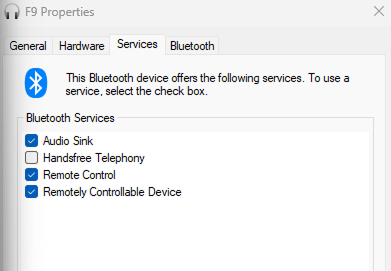
Depending on your Windows version and Bluetooth driver, the headset may show up as two separate devices — "Headphones" (A2DP) and "Headset" (Hands-Free) — or as a single device that switches profiles automatically. Once "Handsfree Telephony" is enabled, select the headset's microphone in the Plasmo Voice menu. Sound quality stays reduced while the microphone is in use.
Linux (PipeWire / PulseAudio)
Switch the headset's profile to "Headset Head Unit (HSP/HFP)" in your sound settings (KDE: System Settings -> Audio; GNOME: Settings -> Sound; or use pavucontrol). The microphone becomes available and the output drops to mono "phone call" quality.

macOS
macOS usually switches automatically. If it doesn't, disconnect and reconnect the headset.
Still not working?
If none of this helped, your microphone may not be supported by the audio backend used in the mod.
You can ask for help in Discord. Make sure to provide info about your system:
- OS
- Audio interface/driver
- Client logs with debug enabled
To enable debug mode, open Mod Menu -> Plasmo Voice -> Config, or manually edit <minecraft folder>/config/plasmovoice/client.toml and set debug = true.
After enabling debug, join the game and upload your logs to mclo.gs.